# Eagle Estates - Part 6
# To-Do's
- Add a folder called
securityand create a file namedir.model.access.csv. - Add a model access right in this file for the
eagle.propertymodel.
# Notes
- The name of the model uses the snake case naming convention with a prefix e.g.
model_eagle_property. - Different access rights are given to different users using the
group_id:idcolumn.
The model access right file should look like this:
id,name,model_id:id,group_id:id,perm_read,perm_write,perm_create,perm_unlink
access_eagle_property,access_eagle_property,model_eagle_property,base.group_user,1,1,1,1
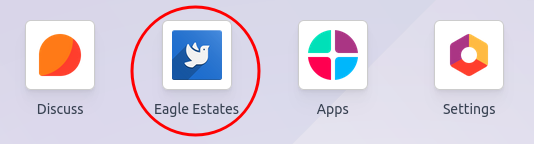
Next, we will add an icon for the app/module. This is done by setting the web_icon attribute on the root menu item.
<menuitem id="menu_eagle_estates_root" name="Eagle Estates" web_icon="eagle_estates,static/description/icon.png">
    <menuitem id="menu_eagle_estates_properties" name="Properties" sequence="10"/>
</menuitem>
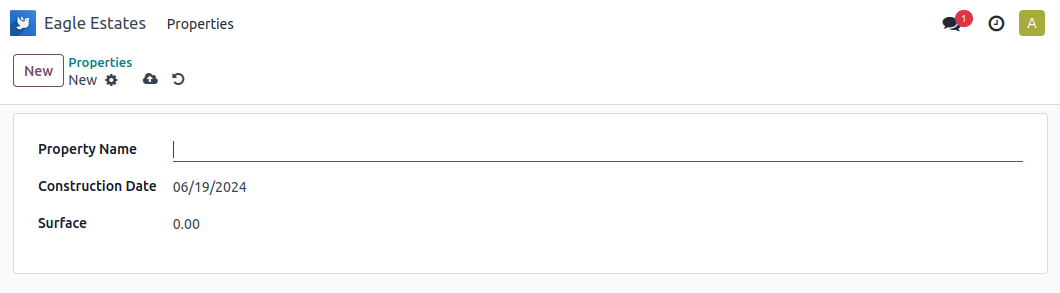
If everything is done correctly, we should now have an app that allows us to manage our real estate properties!
A new module should appear in the apps list. Ensure that it is installed.

Once installed, the app/module should appear in the home screen.
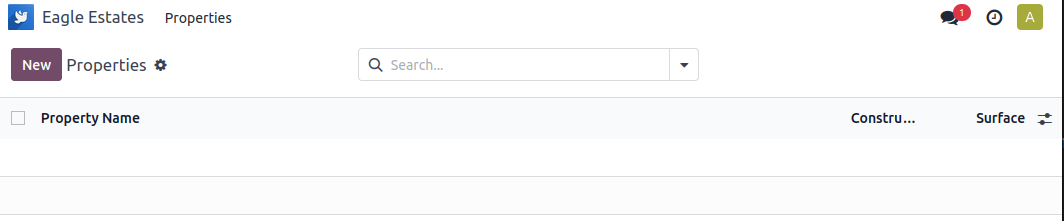
When we click on the root menu item, it triggers the first submenu Properties.
This is the form view.