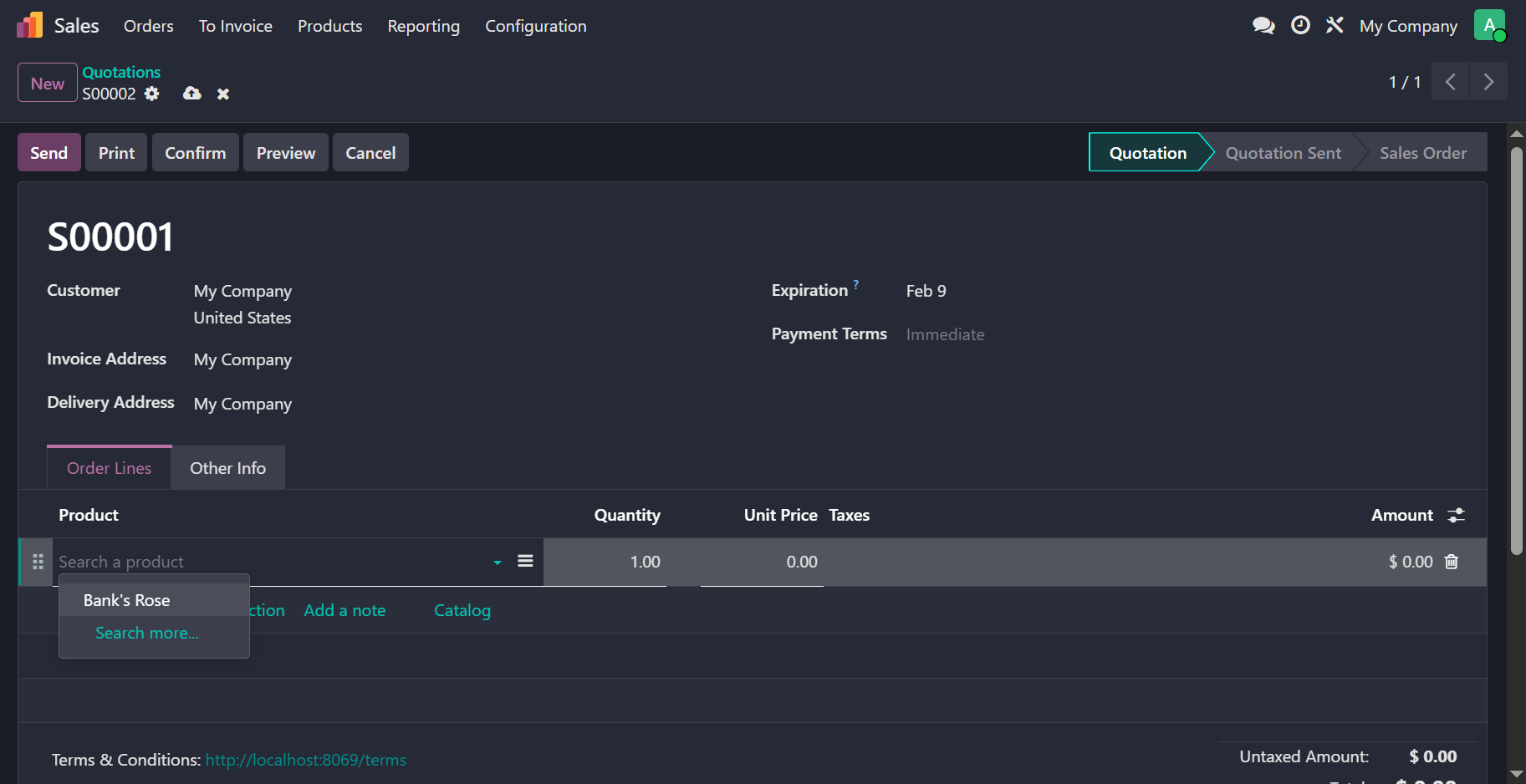
# Sally's Flower Shop - User Interface, Inheritance
In this exercise, we are going to add
a relation between two models (opens new window): flower.flower
and the product model. There are
a few judgement calls to be made before relating the two models.
# Questions
# What relational field should I use?
What we need is a one-to-one mapping between a product and a flower. However, Odoo does not provide such a relation,
instead we will be using a Many2one relational field to achieve this mapping.
# In which model should I place the field?
We must determine whether the flower record needs a reference to the product, or vice versa. The solution is to place a reference to the flower record on the product model. This is necessary because sale order lines utilize product records, and while any flower is inherently a product, not every product is a flower. By linking the flower to the product model, we ensure the system can correctly identify and manage flower-specific data during the sales process.
# What would be the consequence of placing the field in the other model?
Implementing the logic in this way avoids inefficient search queries. Without a direct link, retrieving a flower reference for a product in a sale order line would require searching the entire flower model for a matching product ID. By defining a direct relationship on the product model, accessing the flower record becomes a simple dot-notation call: product_id.flower_id. This Odoo best practice minimizes database overhead and simplifies your Python logic significantly.
# Model Inheritance
In Odoo's product architecture, product.template and product.product are linked via delegation inheritance, meaning a product template always has at least one corresponding variant, and creating a record in one model automatically generates its counterpart in the other. Because Odoo physically syncs template fields into the variant table at the database level, you can access inherited fields like flower_id through multiple paths: directly from the variant as product_id.flower_id or via the explicit link as product_id.product_tmpl_id.flower_id. These models are interconnected through specific relational fields, allowing you to navigate from a template to its primary variant using product_variant_id, or back from any variant to its parent template using product_tmpl_id. However, this synchronization is not bi-directional; fields defined specifically on the variant model, such as barcode or volume, do not exist on the template model and cannot be accessed from it directly.
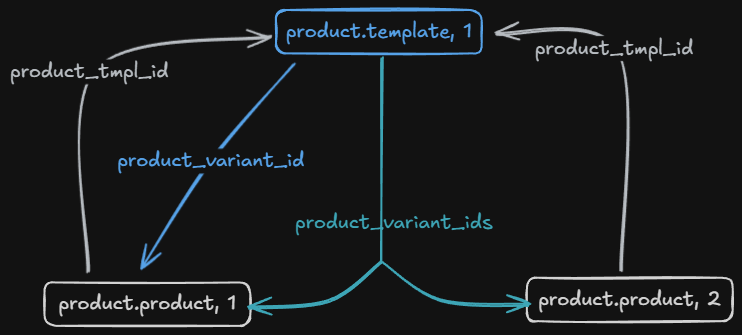
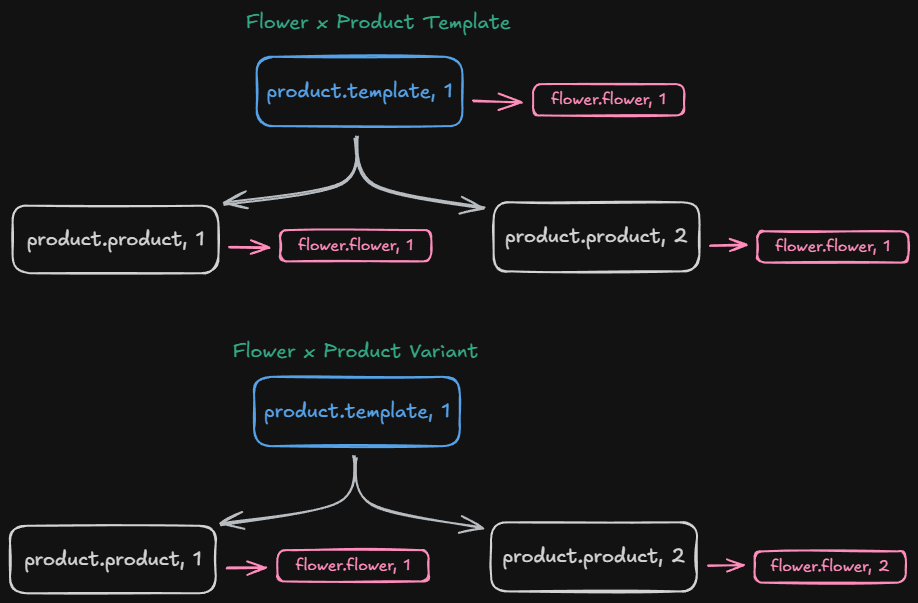
You may establish a mapping between your flower model and any of these product models. This depends on your implementation strategy.
# View Inheritance
The next step is to add the fields in the form view of the product model. In case you are unable to find any product-related views, please install the Sales app (technical
name: sale_management). As a result, this will install product module as a dependency. Also, this is the first time we are going to
do view inheritance (opens new window)
because we will add fields to an existing view.
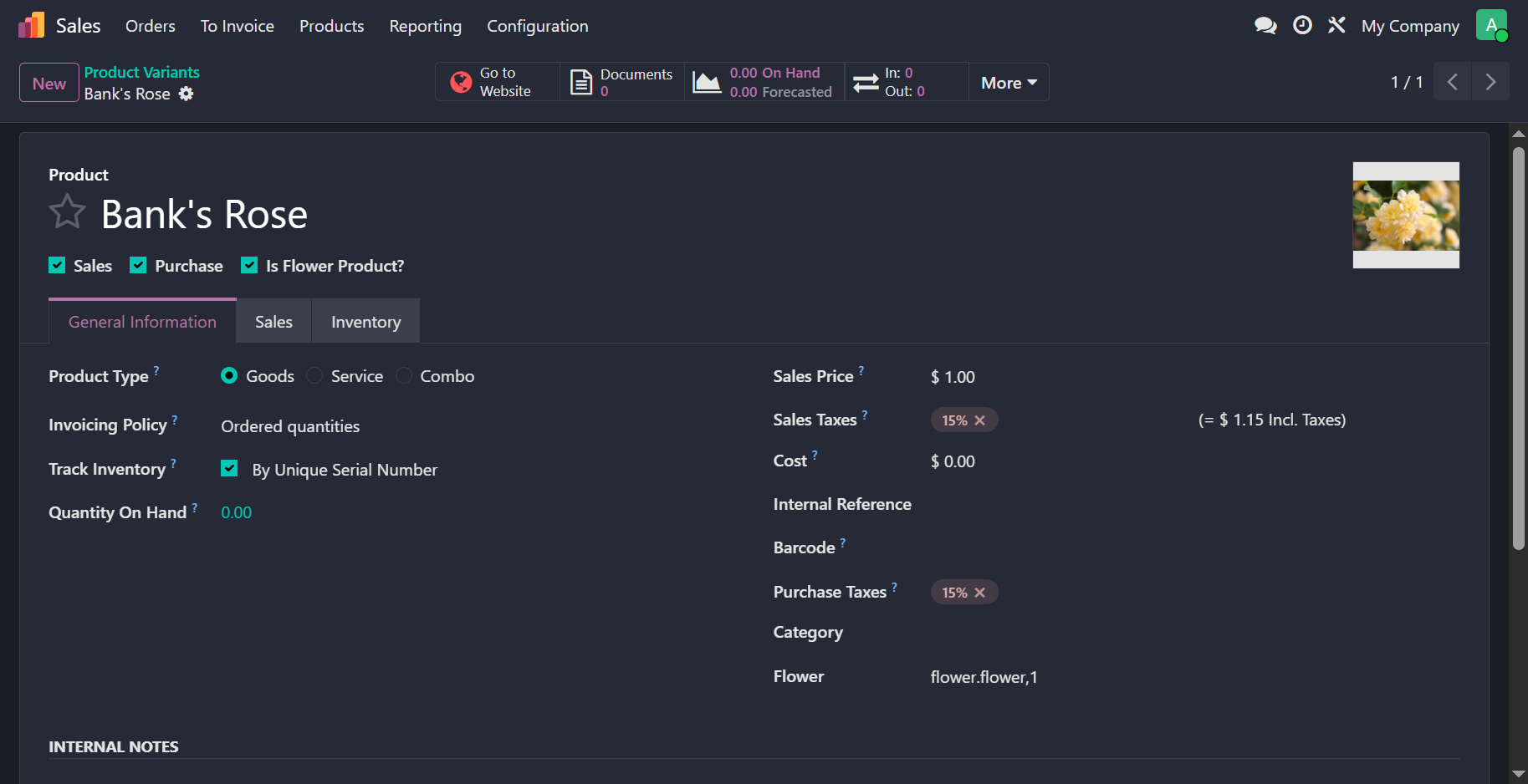
TIP
Screenshots throughout the articles will indicate that we adopted the Product Variant implementation strategy.
# Reliable XPath Expressions
It is important that
our XPath expressions (opens new window) (expr
attribute) do not break or behave unexpectedly with future version releases. The easiest pitfall to avoid is to not use
list indexing e.g. /div[1]. Imagine what would happen if a sibling or a parent div element was added in a future
release by Odoo. This expression would end up in referring to the newly added element instead and hence, produce incorrect
result. A more reliable approach is to use attributes that may be unique to the element you are looking for. For
example, we use the name attribute with the value categ_id to look for a field element.
<odoo>
    <record id="..." model="ir.ui.view">
        ...
        <field name="arch" type="xml">
            <xpath expr="//field[@name='categ_id']" position="after">
                ...
            </xpath>
            <!-- OR alternatively -->
            <field name="categ_id" position="after">
                ...
            </field>
        </field>
    </record>
</odoo>
# Flower-Only Products
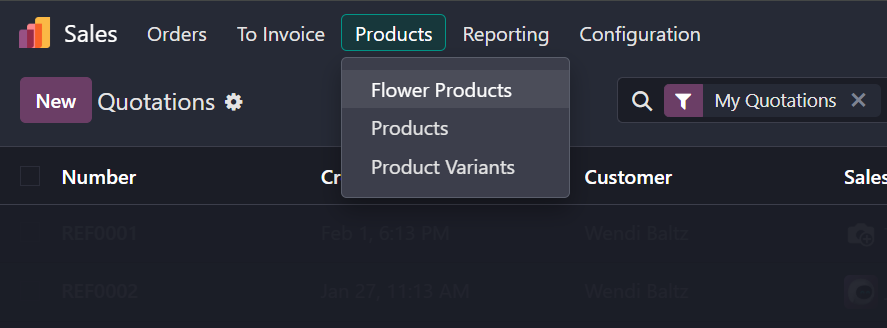
To fulfill the requirement of displaying flower products via a menu item (opens new window), we will first define a window action targeting the product model. We will specify a domain to filter the records so that only products marked as flowers are visible. Additionally, the view_mode will define the available views for the user, such as list and form. Finally, to ensure that any new record created from this action is automatically categorized as a flower, we will use the context field to pass a default value for the is_flower boolean.
<odoo>
    <record id="..." model="ir.actions.act_window">
        ...
        <field name="res_model">...</field>
        <field name="view_mode">kanban,list,form</field>
        <field name="context" eval="{'default_is_flower': True}"/>
        <field name="domain" eval="[('is_flower', '=', True)]"/>
        ...
    </record>
</odoo>
When creating the menu item, we must identify its exact placement within the UI hierarchy. To position it under the Sales/Products menu, the parent field must reference the corresponding XML ID. We will link our window action to this menu and can use the sequence field to control its order among sibling menu items.
Note that when referencing an XML ID from an external module, you must use the module_name.xml_id syntax. Additionally, any external module being referenced must be included in your manifest's dependency list to ensure the target record exists when your module is installed.
<odoo>
    <menuitem
            id="..."
            action="<your_action_xml_id_for_flower_only_products>"
            parent="sale.<products_menu_item_xml_id>"
            sequence="2"
    />
</odoo>
# Domain
The final requirement involves applying a domain to the product field in the sale.order.line model—either on product_tmpl_id or product_id depending on your specific implementation. During development, you will notice that Odoo already defines domains for these fields in both the Python model and the XML form view.
To ensure consistent behavior, you must extend the domain in both locations using inheritance. It is critical not to overwrite the existing domain; instead, you must copy the original domain and use the AND operator (typically represented by '&' in Odoo domain syntax) to combine it with your custom filter. This preserves the standard Odoo logic while layering your flower-specific constraints on top.
Old domain:
[("sale_ok", "=", True)]
New domain:
[("sale_ok", "=", True), ("is_flower", "=", True)]