
# Sally's Flower Shop - API Integration
In this exercise, you will learn how to integrate RESTful APIs with Odoo to fetch external data. To begin, ensure you have created an account on the Open Weather Map (opens new window) website to obtain your API key. This key will allow Odoo to make authenticated requests to their weather service, enabling you to display real-time environmental data directly within your application.
# System Parameters
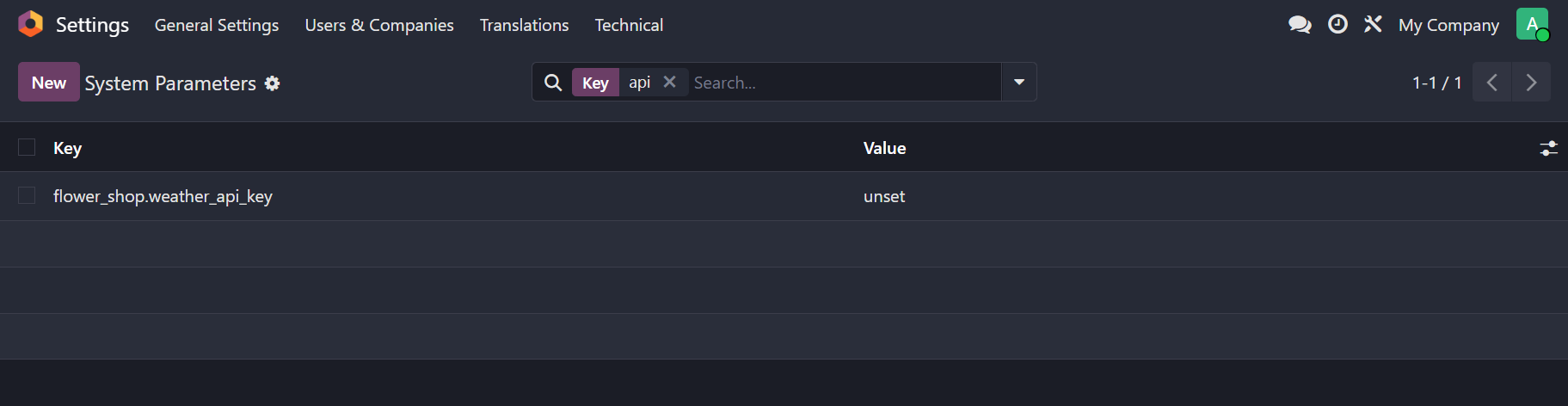
In an API integration, the API key is private, sensitive information that serves as a constant for the database. To manage this in Odoo, we define an ir.config_parameter record in XML with a unique key name and a placeholder value. Using the noupdate="1" attribute ensures that the record is created once and is not overwritten by subsequent module updates. Crucially, because each environment requires its own credentials, you must leave the value as "unset" or simply empty in the code and manually enter the actual key through the Odoo technical settings menu in the web interface.
<odoo>
    <data noupdate="1">
        <record id="..." model="ir.config_parameter">
            <field name="key">flower_shop.weather_api_key</field>
            <field name="value">unset</field>
        </record>
    </data>
</odoo>
To retrieve this value in your Python code, you can use the get_param method on the system parameters. This allows your integration logic to remain flexible and secure, as the logic stays in the code while the configuration remains in the database.
# Location Coordinates
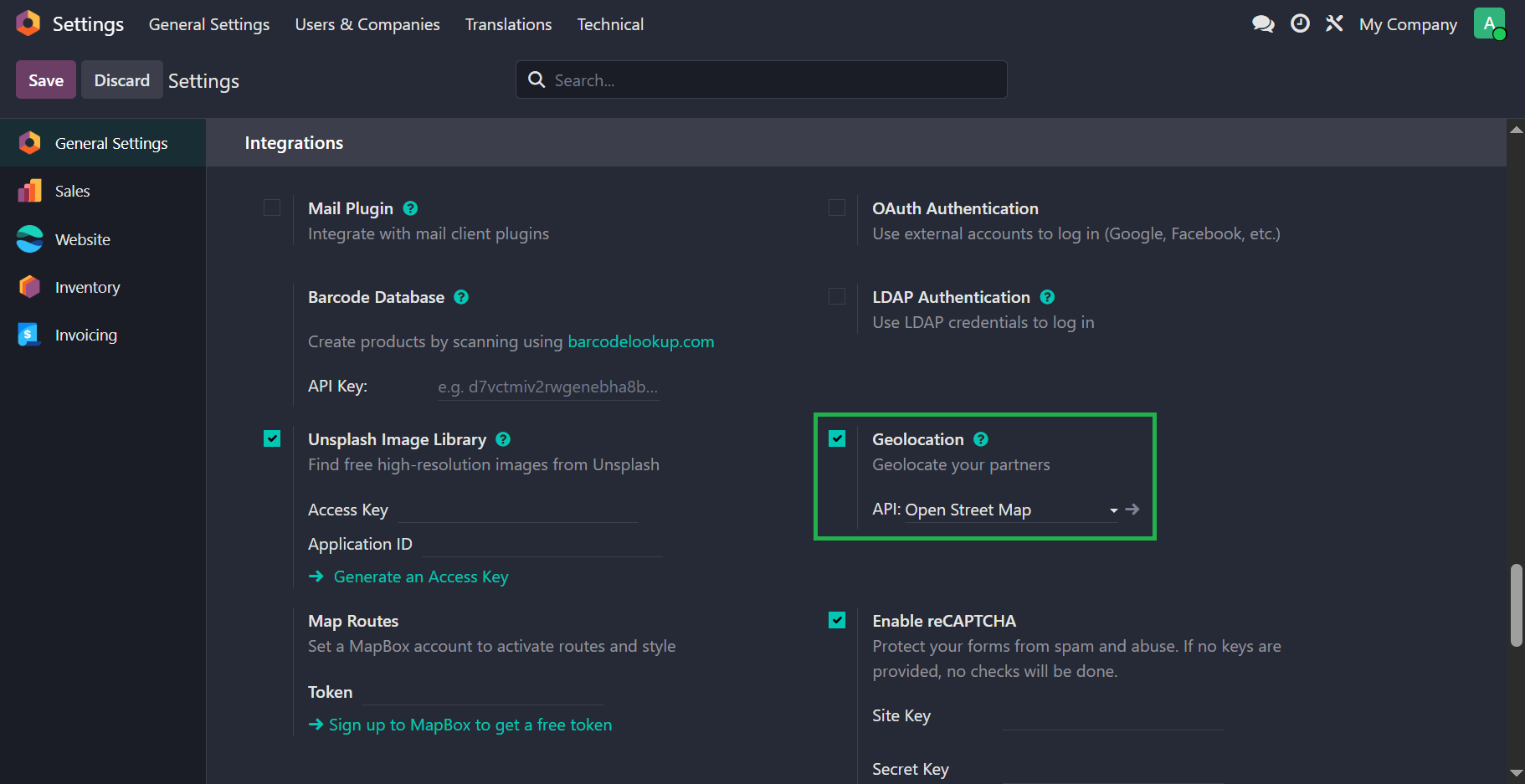
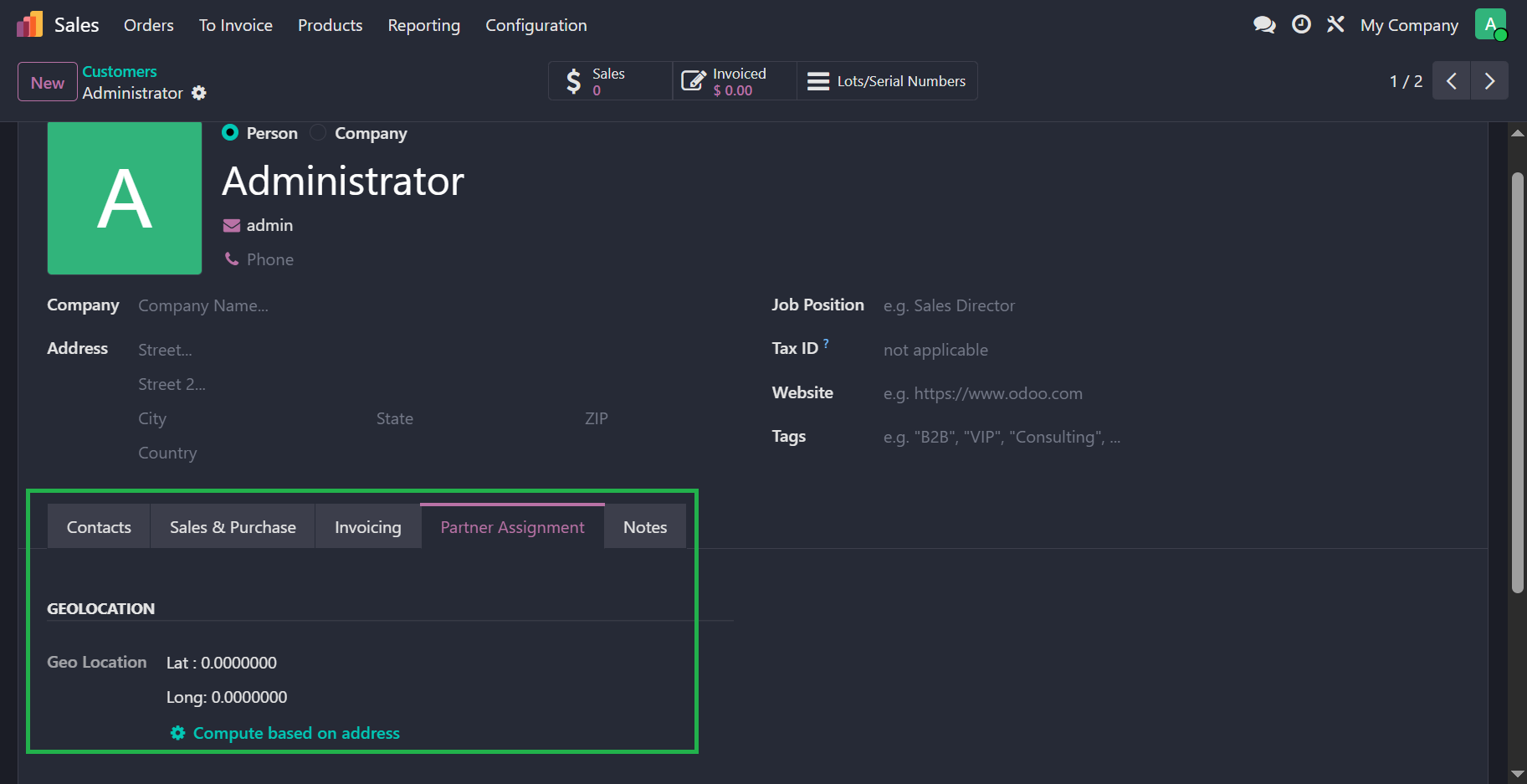
To retrieve weather data, the API requires specific latitude and longitude coordinates. Odoo stores this information in the res.partner model via the partner_latitude and partner_longitude fields, which are provided by the base_geolocalize module. Since the stock.warehouse model contains a partner_id field representing the warehouse's physical address, you can traverse this relationship to access the geocoordinates. It is best practice to encapsulate this retrieval logic within a dedicated helper method, ensuring your main API integration remains clean and focused solely on handling the external endpoint request.
Implementation Flow:
- Locate the Address: Access the
partner_idlinked to the current warehouse record. - Verify Module Dependency: Ensure
base_geolocalizeis installed so the latitude and longitude fields are available on the partner. Alternatively, you can manually install the module and assume the fields will be available. - Extract Coordinates: Fetch the values from
partner_latitudeandpartner_longitude. If the values are not set, invokegeo_localize()method to recompute the values. - Helper Method: Create a method in your warehouse model that returns these coordinates as a tuple or dictionary for easy consumption by the weather service logic.
# API Key
To authenticate your request, you must retrieve the API key stored in the system parameters using the get_param method on the ir.config_parameter model. It is standard practice to use sudo() when fetching this parameter to bypass potential access right restrictions, ensuring the key is available regardless of the current user's permissions. Once retrieved, verify that the key is not "unset" nor empty before passing it to your API request logic, maintaining a clean separation between sensitive configuration data and your functional code.
# HTTP GET Request
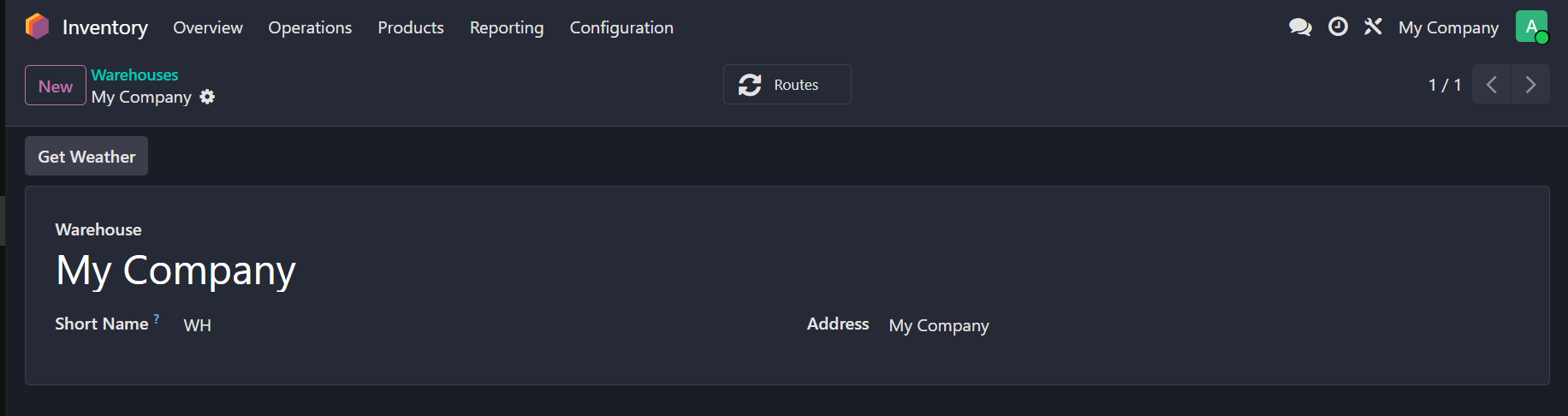
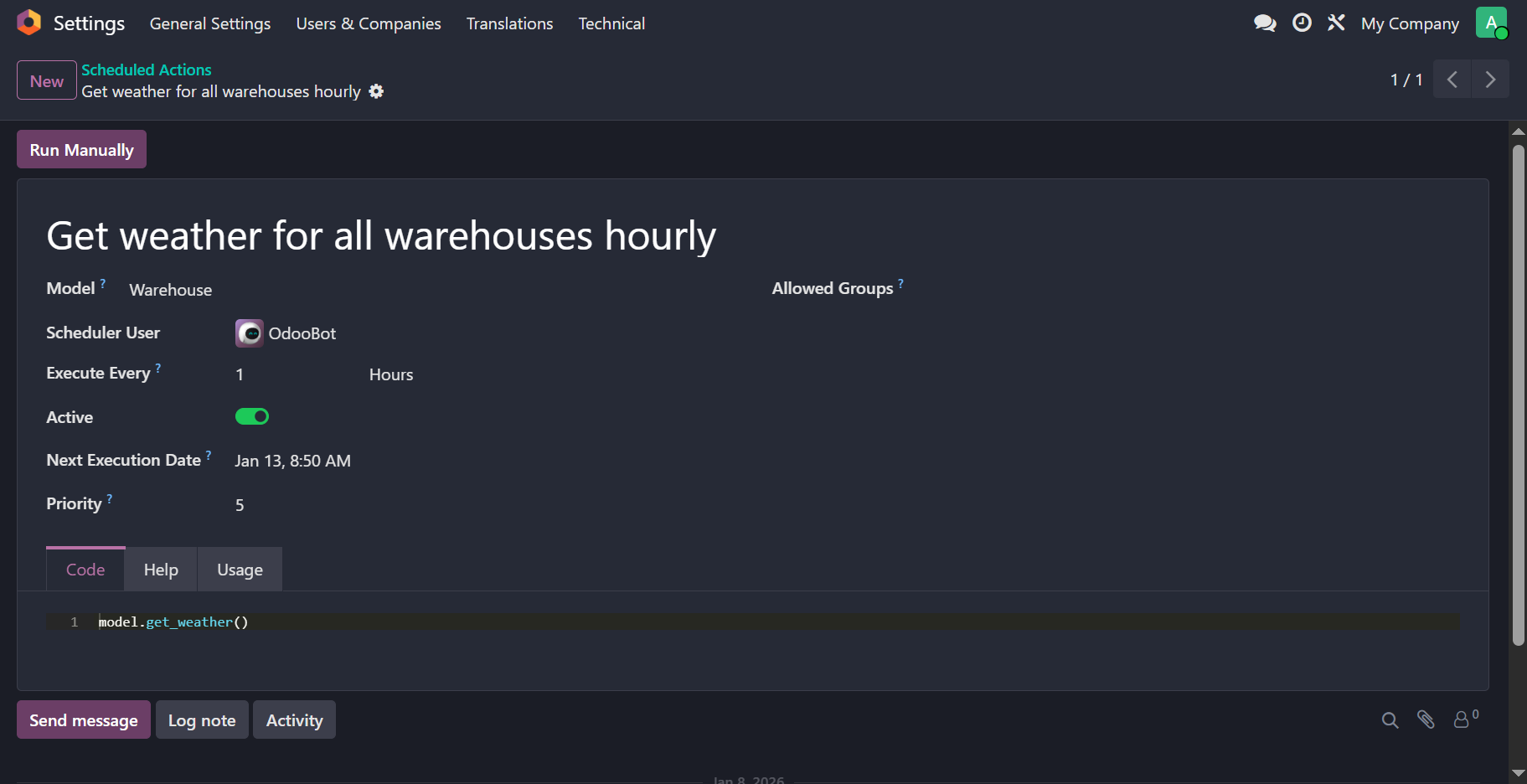
Making HTTP requests in Python is straightforward using the requests library to construct the target URL and execute a GET request. You should wrap the request in a try/except block to gracefully handle potential network timeouts or connection errors without crashing the Odoo process. After analyzing the JSON response structure provided by the Open Weather Map API, you can extract the relevant temperature and weather data to populate a new stock.warehouse.weather record, ensuring the data is correctly mapped to your model's fields.
TIP
Make this method applicable for recordsets by using a loop so that the same method can be used by both the action button (on the form view) and the scheduled action.
 def get_weather(self):
    api_key = ...  # from a helper method
    if not api_key or api_key == "unset":
        # log the error
        ...
        return

    weather_vals = []
    for warehouse in self:
        lat, lng = ...  # from a helper method
        if not lat or not lng:
            # log the error
            ...
            continue
        url = ...  # construct the endpoint URL including the coordinates and the API key
        try:
            response = requests.get(url, timeout=10)
            response.raise_for_status()
            entries = response.json()
            # parse each entry and append to weather_vals
            ...
            # log the results
            ...
        except Exception as e:
            # log the errors
            ...

    self.env["stock.warehouse.weather"].create(weather_vals)
# Weather Forecast
The API call for retrieving a forecast is very similar to the current weather call, but it is essential to study the JSON response structure (opens new window) to correctly parse the 3-hour interval data. We will define a method to iterate through all warehouses and call the forecast endpoint using their specific coordinates. By analyzing the first four entries (covering the 9 AM to 6 PM window), we can check if the predicted rain volume exceeds 0.2 mm; if it does, we identify all flower stock in that warehouse by querying the stock.quant model. Finally, the method collects all associated stock.lot records and automatically triggers the watering process by creating new records in our previously defined watering model.
def get_weather_forecast(self):
    api_key = ...  # from a helper method
    if not api_key or api_key == "unset":
        # log the error
        ...
        return

    water_vals = []  # accumulate vals for batch creation
    for warehouse in self:
        lat, lng = ...  # from a helper method
        if not lat or not lng:
            # log the error
            ...
            continue
        url = ...  # construct the endpoint URL including the coordinates and the API key
        try:
            response = requests.get(url, timeout=10)
            response.raise_for_status()
            entries = response.json()
            rain_today = False
            # check only first 4 items in the entries (which should be current day's 9 AM to 6 PM)
            for ...:
                # fetch rain volume from the entry
                rain = ...
                if rain > 0.2:
                    rain_today = True
                    break
        except Exception as e:
            # log the errors
            ...

        # if it rained or will rain today then fetch the flower serials which have some stock in this warehouse
        if rain_today:
            quants = self.env["stock.quant"].search([
                ("warehouse_id", "=", warehouse.id),
                ("quantity", ">", 0)
            ])
            # use product_id.is_flower or product_id.product_tmpl_id.is_flower
            flower_quants = quants.filtered(lambda q: q.product_id.is_flower)
            flower_serials = flower_quants.lot_id

            # ALTERNATIVE 1: call the method to water the flower serials from stock.lot model
            flower_serials.action_water_flower()

            # ALTERNATIVE 2: accumulate values to batch create later
            for lot in flower_serials:
                water_vals.append({
                    "lot_id": lot.id,
                    "date": fields.Date.today()  # only if you did not set a default value
                })

            # log the results
            ...

    # batch create if using ALTERNATIVE 2
    self.env["flower.water"].create(water_vals)
# Logs
Logging is a critical tool for tracking background processes, particularly with API integrations and scheduled actions. Unlike interactive buttons or server actions that display immediate error messages to the user, scheduled actions run silently in the background; if they fail, there is no visual feedback. By using Odoo's standard logger, you can record successes, warnings, and errors in the server logs. This allows administrators to monitor the health of the integration and troubleshoot issues by checking the log files.
import logging
_logger = logging.getLogger(__name__)

# inside your methods
_logger.info(f"Successfully watered {len(water_vals)} flowers in the warehouse {warehouse.name}")
...
_logger.warning(f"Weather entry does not have any rain volume recorded")
...
_logger.error(f"Could not fetch the weather data for the warehouse {warehouse.name}")