# Sally's Flower Shop - Reports
This exercise focuses on implementing QWeb reports (opens new window). While the official documentation provides a comprehensive guide to QWeb syntax, we will focus on the essential development practices for creating and customizing reports in Odoo. This includes structuring your XML templates for maintainability, handling data loops, and ensuring that your report layouts align with the Odoo web-client standards.
# File Structure
By convention, all report-related Python and XML files are organized within a dedicated reports directory. After initializing this folder, we will create an XML file named flower_sale_order_views.xml. This file will house the QWeb report template, following the standard minimal viable template structure to ensure compatibility with Odoo’s reporting engine.
# Pagination
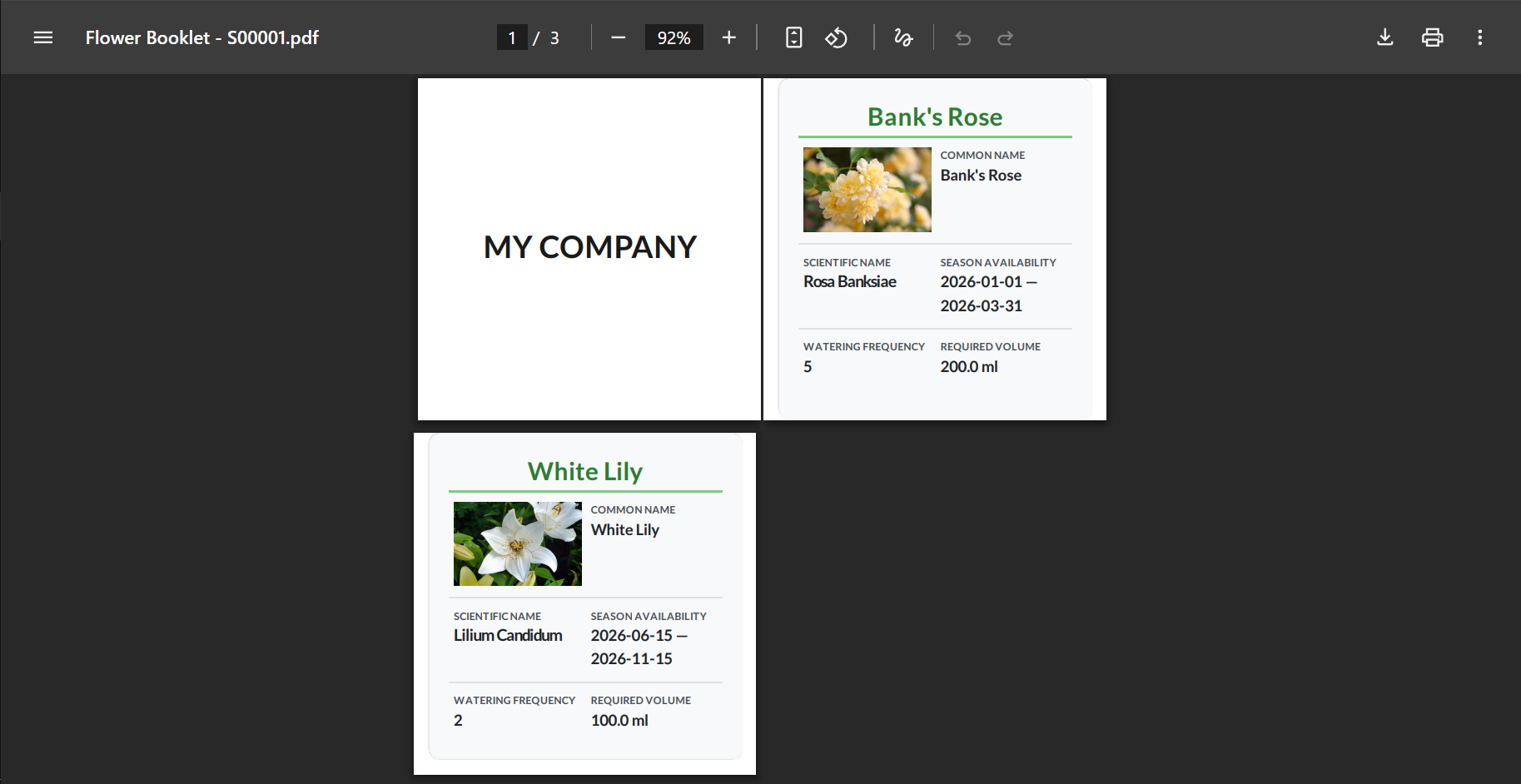
To implement separate pages, we will wrap the content in a div using the page class and the CSS property style="page-break-after: always;". This ensures a forced break after the first page, which contains the company name.
We will use a standard Odoo layout, such as web.basic_layout, to provide the necessary structure for the report. By looping through the sale order lines and applying these page-break styles, we can ensure that the flower details are correctly isolated on subsequent pages.
<odoo>
    <template id="...">
        <t t-call="web.basic_layout">
            <div class="page" style="page-break-after: always">
                <!-- add company name in the first page -->
            </div>
            <!-- use a loop render one page per sale order line that contains a flower product -->
            <t t-foreach="..." t-as="...">
                <div class="page" style="page-break-after: always">
                    <!-- add flower details -->
                </div>
            </t>
        </t>
    </template>
</odoo>
# Paper Format
When clients require specific page dimensions or sizes for specialized outputs like labels, we define custom paper formats (opens new window) instead of hard-coding dimensions within the report templates.
It is critical to remember that Odoo paper formats have non-zero default margins. For label printing or full-bleed layouts, you must explicitly set these margins to zero in the record definition. You can store your paper format records either within the same file as the report template or in a dedicated paperformat.xml file inside the data directory.
You must set the width and height of the page to meet one of the requirements in this exercise.
<odoo>
    <record id="..." model="report.paperformat">
        ...
        <field name="margin_top">0</field>
        <field name="margin_bottom">0</field>
        <field name="margin_left">0</field>
        <field name="margin_right">0</field>
        ...
    </record>
</odoo>
# Report Action
The report action is responsible for triggering the document generation process. In the report_name field, we specify the XML ID of the QWeb template we created. When executed, the action retrieves the records for the model defined in the model field.
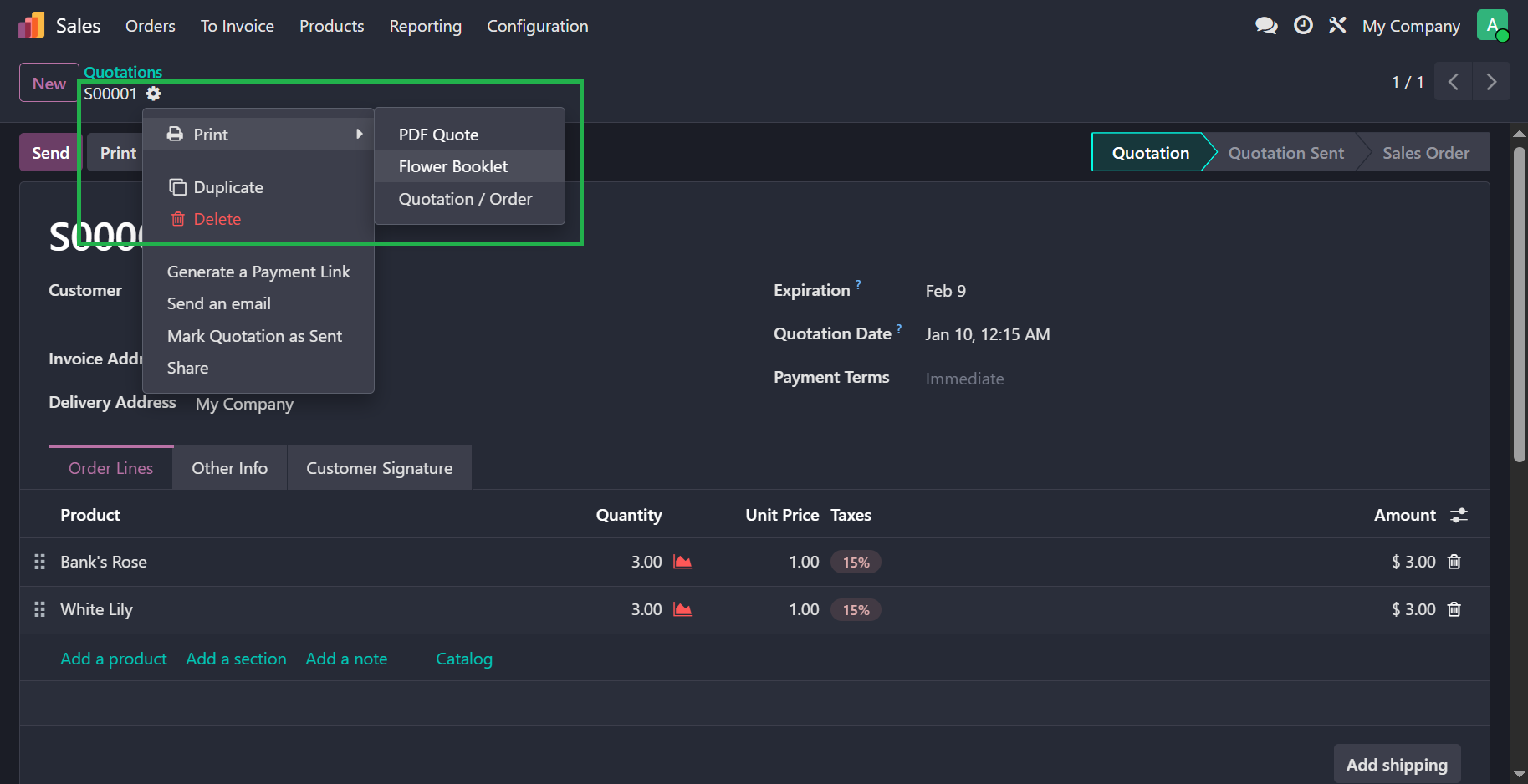
This action also serves as the link between the report template and its configuration; we use the paperformat_id field to bind our custom paper format to the report. To ensure the report is accessible from the "Print" menu on sale orders, we must set the binding_model_id to the appropriate model. Finally, because the report action references the XML IDs of both the template and the paper format, it must be loaded after them in the manifest to avoid reference errors.
<odoo>
    <record id="..." model="ir.actions.report">
        <field name="name">Your Report Name</field>
        <field name="model">sale.order</field>
        <field name="report_type">qweb-pdf</field>
        <field name="report_name">your_module_name.your_report_template_id</field>
        <field name="print_report_name">python_expression_for_pdf_file_name</field>
        <field name="binding_model_id" ref="sale.model_sale_order"/>
        <field name="paperformat_id" ref="your_custom_paper_format_xml_id"/>
    </record>
</odoo>
If successful, the report action should look like this under the Print options.
# Custom Reports
By default, Odoo passes the selected records to the report template as the docs variable. However, for custom reports (opens new window), we can inject additional data by defining an abstract model with the name report.module_name.report_name.
Here is a glimpse of the final report.